
Design Like a Pro: How to Use Canva for Stunning Visuals
In today’s visually driven world, compelling aesthetics are no longer a luxury but a necessity. From burgeoning startups to established enterprises, the ability to craft stunning visuals can dramatically impact brand perception, engagement, and ultimately, success. While traditional graphic design software often comes with steep learning curves and hefty price tags, a formidable contender has emerged: Canva. This intuitive platform empowers anyone to become a design maestro, transforming abstract ideas into breathtaking visual realities. This comprehensive guide will equip you with the knowledge and techniques to harness Canva’s power, allowing you to design like a pro and create memories that last.
Contents
- 1 Understanding the Basics of Canva Design
- 2 Choosing the Right Templates for Your Visuals
- 3 Utilizing Canva’s Tools and Features for Professional Designs
- 4 Incorporating Branding and Consistency in Your Canva Designs
- 5 Tips for Creating Eye-Catching Graphics and Images
- 6 Enhancing Your Designs with Canva’s Photo Editing Features
- 7 Designing Engaging Social Media Graphics with Canva
- 8 Creating Professional Presentations and Infographics with Canva
- 9 Collaborating and Sharing Designs with Canva’s Team Features
- 10 Advanced Tips and Tricks for Mastering Canva Design
Understanding the Basics of Canva Design
Getting started with Canva is remarkably straightforward, but a foundational understanding of its core principles will significantly enhance your design journey. Canva primarily functions through a drag-and-drop interface, rendering it accessible to users of all skill levels.
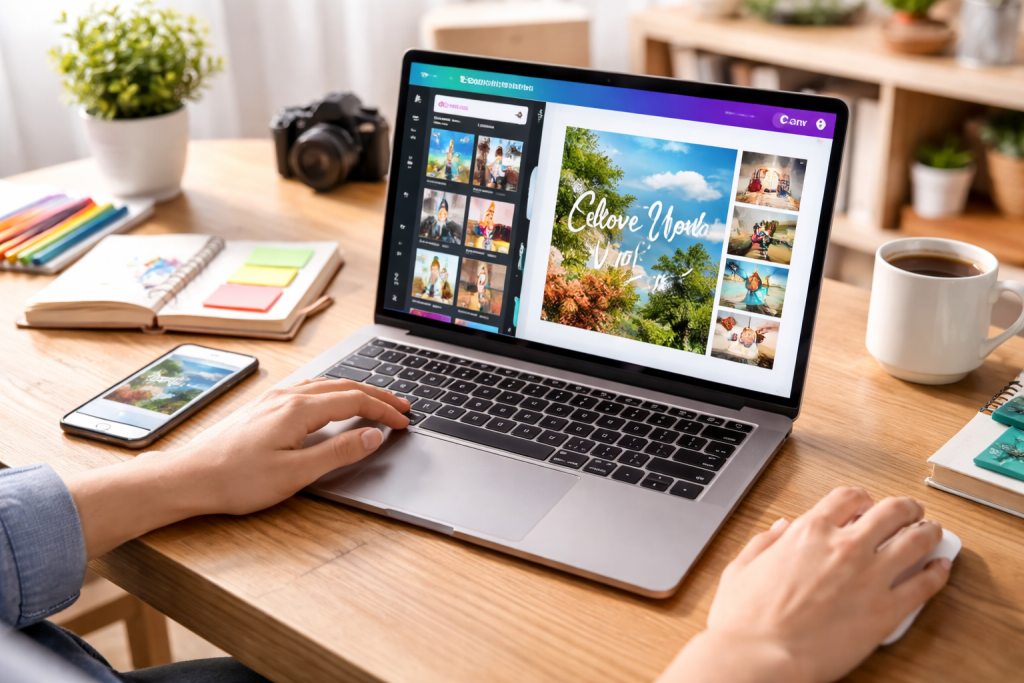
The Canva homepage greets you upon logging in, opening a world of creative possibilities. The central design area, known as the canvas,””is where your visual masterpiece takes shape. To the left, a powerful sidebar provides access to an extensive library of design elements. You’ll find templates, photos, elements (shapes, icons, lines), text options, brand kits, uploads, and more. Familiarising yourself with each section is crucial for an efficient design.
Essential Design Principles within Canva
Even with a user-friendly tool like Canva, a basic grasp of design principles will elevate your work from excellent to exceptional. Consider concepts like visual hierarchy, which guides the viewer’s eye through the design, by emphasising key information. Consistency in typography, colour palettes, and imagery creates a cohesive and professional look. Negative space, or the empty areas around your design elements, is equally important; it prevents visual clutter and improves readability. Understanding these fundamental principles will empower you to make informed design choices rather than simply relying on visual instincts.
Choosing the Right Templates for Your Visuals
Canva’s most celebrated feature is its expansive library of expertly designed templates, a true game-changer for anyone short on time or design experience. These predesigned layouts serve as powerful springboards for your creative endeavours.
Exploring Canva’s Template Library
The sheer variety of templates available is staggering, covering virtually every design need imaginable. Whether you’re crafting a social media post, a business card, a presentation, or an invitation, Canva likely has dozens, if not hundreds, of relevant templates. Utilise the search bar to narrow your options by keywords like “Instagram post”, “business brochure”, or “infographic”. Browse by category to discover new design possibilities and trends.
Customizing Templates to Reflect Your Vision
While templates offer a fantastic starting point, the true magic lies in their customisability. Don’t be afraid to deviate from the original design. Change colours to match your brand, swap out photos for your own, adjust fonts, and reposition elements. The goal is to make the template distinctly yours. Think of a template as a well-structured skeleton; you get to add the flesh, skin, and personality. Experiment with different combinations until you achieve a design that perfectly aligns with your message and aesthetic.
Utilizing Canva’s Tools and Features for Professional Designs
Beyond templates, Canva offers a comprehensive suite of tools and features that allow for intricate customisations and professional-grade results. Mastering these will unlock a new level of design sophistication.
Mastering Text and Typography
Text plays a pivotal role in visual communication. Canva provides an extensive collection of fonts, from classic serifs to modern sans-serifs and whimsical scripts. Understanding font pairing—selecting two or three complementary fonts for your design—is essential for visual harmony. Experiment with different font sizes, weights, and letter spacing to create emphasis and improve readability. Canva also offers text effects like shadows, outlines, and curves, adding another layer of visual interest.
Leveraging Canva’s Extensive Element Library
The “Elements” tab provides a wealth of design assets. Here, you’ll find a vast collection of icons, shapes, lines, frames, stickers, and even animated graphics. These elements can add visual flair, break up text, highlight key information, or simply make your designs more engaging. Use the search bar to find specific icons or illustrations relevant to your content. Vector graphics, in particular, are highly scalable without losing resolution, making them perfect for various applications.
Harnessing Photos and Backgrounds
Canva boasts an impressive stock photo library, alongside the ability to upload your images. High-quality visuals are paramount for capturing attention. Use Canva’s powerful search filters to find photos that align with your theme, mood, and colour palette. Beyond static images, you can also incorporate video backgrounds or animated elements to add dynamic flair to your designs. Pay attention to image composition and ensure photos are relevant and of excellent quality.
Incorporating Branding and Consistency in Your Canva Designs
For businesses and individuals alike, maintaining a consistent brand identity across all visual touchpoints is paramount. Canva makes this process remarkably simple and efficient.
Building Your Brand Kit
Canva’s “Brand Kit” feature significantly enhances consistency. Here, you can upload your brand logos, define your official branding colours, and set your preferred fonts. Once established, these elements are readily available in all your designs, eliminating the need to repeatedly input colour hex codes or search for specific fonts. This saves time and ensures every design adheres to your brand guidelines.
Applying Brand Guidelines Through Templates
Even when using templates, always ensure they are adapted to your brand’s aesthetic. Replace the default colours with your brand colours; switch to your brand fonts; and incorporate your logo prominently but tastefully. Think of brand guidelines not as rigid rules but as a framework that allows for creative expression within a consistent visual language. Consistent branding fosters trust and recognition, reinforcing your identity in the minds of your audience.
Tips for Creating Eye-Catching Graphics and Images
Beyond the technical aspects, understanding the art of creating visually appealing graphics is essential for truly standing out.
Mastering Color Psychology
Colours evoke emotions and convey messages. Understanding basic colour psychology can help you make informed decisions that resonate with your target audience. For instance, blues often convey trust and professionalism, while reds can signify passion and urgency. Experiment with complimentary, analogous, and monochromatic colour schemes to create visually harmonious and impactful designs.
Utilizing White Space Effectively
White space, or negative space, is the unspoken hero of good design. It’s the empty area around your design elements that gives them room to breathe. Don’t be afraid of space; it prevents your designs from feeling cluttered and overwhelming. Strategic use of white space improves readability, highlights key information, and creates a sense of elegance and sophistication.
Employing Visual Hierarchy
colours, Visual hierarchy is about guiding the viewer’s eye through your design in a deliberate order. Larger fonts, bolder colours, and prominent placements can draw attention to the most important elements. Think about what message you want to convey first, second, and third, and then design your graphics to reflect that order of importance. This guarantees that your primary message consistently reaches its intended audience.
Enhancing Your Designs with Canva’s Photo Editing Features
Canva is not just for graphic design; it also offers robust photo editing capabilities that can elevate your images to a professional standard without needing complex software.
Adjusting Brightness, Contrast, and Saturation
colours Basic photo adjustments can dramatically improve the visual appeal of your images. Use the brightness, contrast, and saturation sliders to fine-tune exposures, deepen shadows, and make colours pop. Be mindful not to overdo these adjustments, as it can lead to unnatural-looking photos.
Applying Filters and Effects
Canva offers a wide array of filters that can instantly transform the mood and aesthetic of your photos. From vintage looks to vibrant modern styles, filters can add a professional finish with a single click. Experiment with different effects like blur, vignette, and duotone to create unique visual styles that align with your design.
Utilizing Background Remover and Other Smart Features
One of Canva’s most impressive photo editing tools is the background remover. With a single click (for Pro users), you can isolate the subject of your image, opening up endless possibilities for creative collages and product displays. Other smart features include auto-enhance, which automatically adjusts your photo for optimal appearance, and the ability to crop and resize with precision.
Designing Engaging Social Media Graphics with Canva
Social media is a visual battlefield, and well-designed graphics are your most potent weapons. Canva is an indispensable tool for crafting captivating content across all platforms.
Optimizing Graphics for Different Platforms
Each social media platform has its own optimal image dimensions. Canva recognises this and provides preset canvas sizes for Instagram posts, Facebook covers, Pinterest pins, Twitter headers, and more. Always select the correct dimension to ensure your graphics look sharp and are not cropped awkwardly.
Creating Consistent Social Media Branding
Just as with overall branding, consistency on social media is crucial. Develop a distinct visual style for your social media presence using your brand’s colours, fonts, and a recurring design motif. This consistency makes your content instantly recognisable and strengthens your brand identity in a noisy social media landscape.
Utilizing Canva’s Animation Features for Dynamic Posts
Static images are excellent, but animated graphics are even better for capturing attention on social media feeds. Canva’s animation features allow you to add subtle motion to text, graphics, and even entire designs. Experiment with different animation styles to make your social media posts more dynamic and engaging, prompting more stops and interactions.
Creating Professional Presentations and Infographics with Canva
Beyond social media, Canva excels at creating informative and impactful long-form content, perfect for education, business, and information dissemination.
Designing Impactful Presentations
colour Forget boring bullet points. Canva’s presentation templates are designed to help you tell compelling stories. Combine visually appealing slides with concise text, relevant images, and engaging graphics. Use consistent layouts and colour schemes to maintain flow and professionalism throughout your presentation. Remember to keep slides uncluttered and easy to digest.
Crafting Informative Infographics
Infographics are powerful tools for communicating complex information in an easily understandable and visually appealing format. Canva provides a wealth of infographic templates that cater to various data presentation needs. Break down your information into bite-sized chunks, use icons and charts to illustrate data points, and employ a logical flow to guide the viewer through the narrative.
Collaborating and Sharing Designs with Canva’s Team Features
Canva isn’t just for individual work; it’s also a powerful platform for team collaboration, streamlining design workflows and fostering creative synergy.
Real-time Design Collaboration
Canva’s sharing features allow multiple users to work on the same design simultaneously. Team members can view edits, leave comments, and make adjustments in real time, making design reviews and iterations incredibly efficient. This feature is invaluable for teams needing to create a consistent visual output across departments.
Sharing Designs for Feedback and Approval
finalisation. Beyond direct editing, you can share designs with clients or stakeholders for feedback and approval without giving them full editing access. They can comment directly on the design, streamlining the review process and ensuring everyone is on the same page before finalising.
Advanced Tips and Tricks for Mastering Canva Design
Once you’ve mastered the fundamentals, these advanced techniques will empower you to explore new creative possibilities and achieve true mastery over Canva.
Keyboard Shortcuts for Efficiency
Like any professional software, Canva has various keyboard shortcuts that can significantly speed up your design process. Learn common shortcuts for copying, pasting, grouping, ungrouping, and duplicating elements. A little time invested in learning these will save you countless clicks and minutes in the long run.
Utilizing Layers and Grouping
Managing multiple elements on a canvas can become unruly without proper organization. Canva’s layering system allows you to control the order of elements, bringing some to the front and sending others to the back. Grouping multiple elements together allows you to move and resize them as a single unit, ensuring relative positioning remains intact. These features are crucial for complex designs.
Exploring Canva Pro Features
While the free version of Canva is incredibly robust, Canva Pro unlocks a suite of advanced features that can take your designs to the next level. This includes the Brand Kit, background remover, premium stock photos and elements, content planner, and more advanced animation options. For regular users or businesses, the investment in Canva Pro often pays dividends in saved time and enhanced design capabilities.
By embracing these strategies and continually experimenting with Canva’s dynamic features, you will create visually stunning graphics and develop a sophisticated design sensibility that will serve you well in any creative endeavour. Design with expertise, allowing your visuals to convey a powerful message.

Fit Text Graphics is the creator of SkillNexy, a platform focused on helping people learn valuable skills and grow in their careers. SkillNexy’s mission is to make skill development simple, practical, and accessible for everyone.